Home › Knowledge Base › Using Rescover
Using Rescover"Run comps and read rental valuations"
The comparable sales and rentals behind every estimate, with the controls to tune or override them.
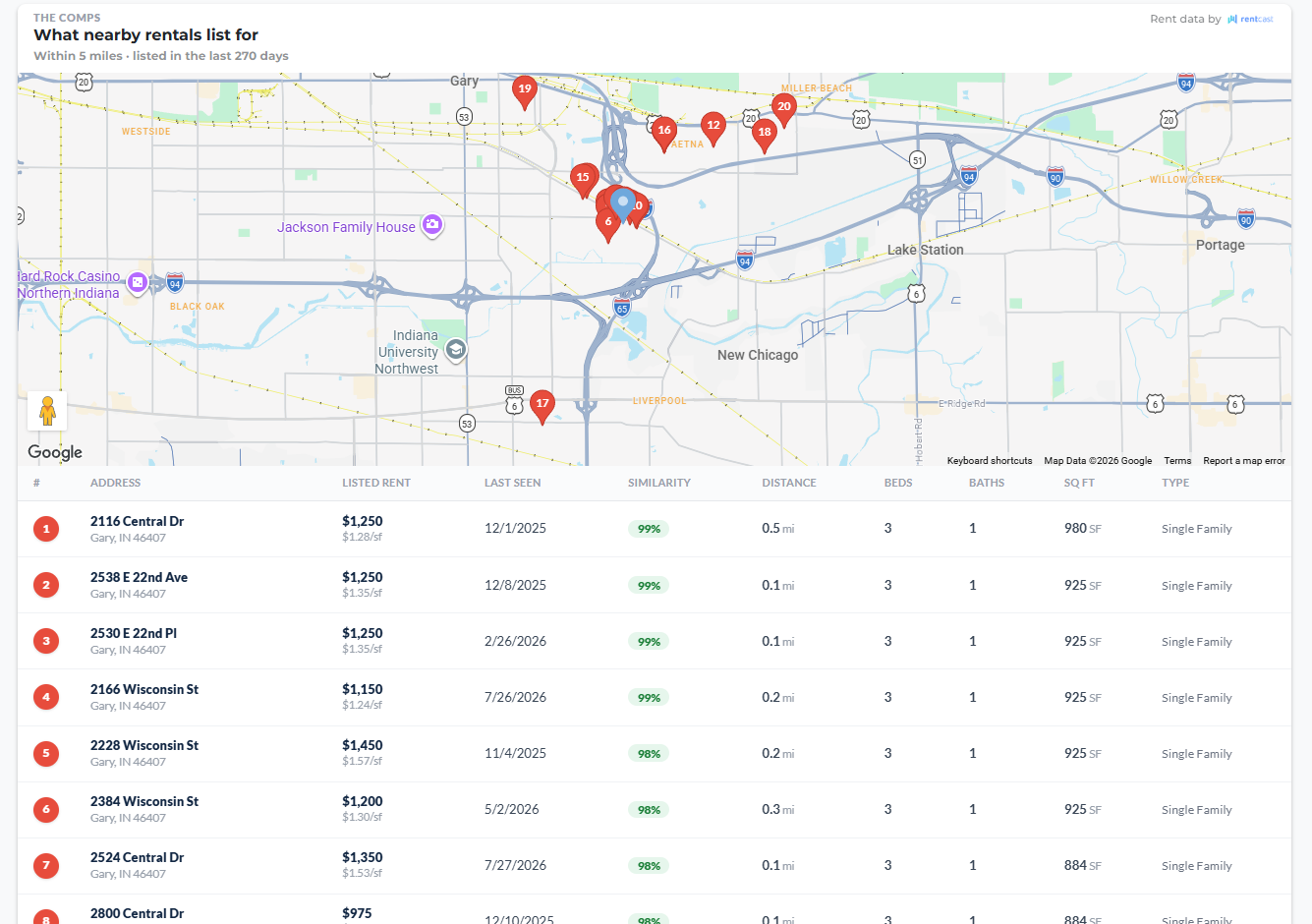
Every valuation in Rescover shows its comparables. Open a property and go to the Comps tab to see the sale and rental comps behind the numbers.
How comps are chosen
Defaults favor proximity, same property type, beds and baths within one, square footage within about 20%, and recency (roughly 6 to 12 months for sales, about 90 days for rentals). Rental comps carry a similarity score so you can see how close each match really is.
Tuning the comp set
Open the comp settings to tighten the search radius, adjust bed/bath tolerance, or change the recency window. You can also uncheck individual comps or add ones the algorithm missed. The rental comp set feeds the market rent estimate used in your analysis, so tuning comps tunes the whole projection.
Rents and comps are estimates powered by RentCast; the inputs stay visible and editable rather than hiding behind a single number.
When comps look wrong
Thin rental data (common in rural areas) or an outlier skewing the set are the usual culprits. Tighten the radius or select comps manually; when your local knowledge disagrees with the algorithm, your judgment wins, and the override is one click.
"A tour of myRescover"
What each sidebar item does, and where to start depending on the job you came to do.
"AutoPilot: verified targets, every Monday"
Save a search, switch on AutoPilot, and 25 verified, skip-traced targets arrive each Monday.
"Billing, payments, and refunds"
Where invoices live, what gets refunded (and what doesn't), and the one-day path for billing disputes.
See it with your own numbers.
Search free with no signup, or start a 14-day free trial of Property Suite Pro.
Search listings